
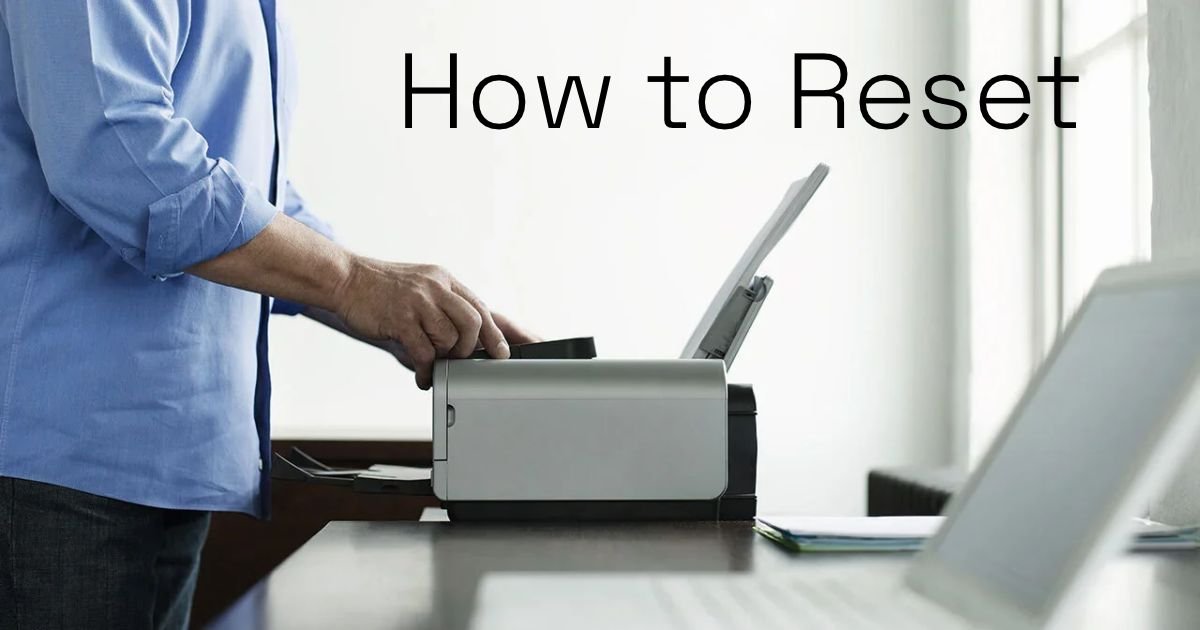
How Do I Reset the Printer Connection?
A Complete Troubleshooting Guide
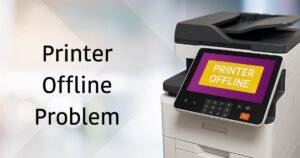
Is your printer not connecting to your computer or Wi-Fi network? Does your computer show a printer connection error, or does your wireless printer suddenly stop responding?
Printer connection problems are common and can happen with HP, Canon, Epson, Brother, and other printer brands.
Sometimes, the printer loses its Wi-Fi connection. In other cases, Windows cannot communicate with the printer because of incorrect settings, outdated drivers, or network issues.
Resetting the printer connection can often solve these problems and restore normal printing.
In this guide, we’ll explain how to reset a printer connection, reconnect a wireless printer, and troubleshoot common connection errors in Windows 10 and Windows 11.
Why Does a Printer Connection Stop Working?
Before resetting your printer, it’s useful to understand what may have caused the connection problem.
Common reasons include:
- Wi-Fi connection interruptions.
- Printer and computer connected to different networks.
- Router or modem problems.
- Incorrect wireless network settings.
- Changed printer IP address.
- Outdated or corrupted printer drivers.
- USB cable connection issues.
- Windows printer configuration errors.
- Print Spooler service problems.
Identifying the cause can help you choose the correct reset method.
Restart Your Printer and Wi-Fi Router
Start with a simple power cycle. This can resolve temporary communication problems between your printer, computer, and router.
Follow these steps:
- Turn off your printer.
- Disconnect the printer’s power cable.
- Turn off your Wi-Fi router.
- Wait approximately 30 seconds.
- Turn the router back on.
- Wait until the Wi-Fi network is available.
- Reconnect and turn on your printer.
- Check whether the printer connects successfully.
This process does not erase your printer’s saved network settings.
Reset the Wireless Connection on Your Printer
If your wireless printer cannot connect to Wi-Fi, you may need to reset its network settings.
The exact procedure depends on your printer model.
Generally, you can:
- Open your printer’s control panel.
- Navigate to Network or Wireless Settings.
- Find the Network Reset or Restore Network Settings option.
- Select the reset option.
- Confirm your selection.
- Wait for the printer to restart its network connection.
After resetting, you will need to connect the printer to your Wi-Fi network again.
Important: A network reset may erase the saved Wi-Fi name and password. It normally does not erase documents or reset every printer setting.
Reconnect Your Printer to Wi-Fi
After resetting the wireless settings, connect your printer to your Wi-Fi network.
On printers with a touchscreen:
- Open Wireless or Network Settings.
- Select Wireless Setup Wizard, if available.
- Choose your Wi-Fi network.
- Enter your Wi-Fi password.
- Confirm the connection.
- Wait for the printer to connect.
If your printer does not have a touchscreen, use the manufacturer’s recommended setup application or wireless setup procedure.
Make sure your computer and printer can communicate through the same local network.
Remove and Reinstall the Printer in Windows 11
Sometimes, Windows stores incorrect printer configuration information.
Removing and adding the printer again can help restore communication.
Steps for Windows 11:
- Press Windows + I.
- Select Bluetooth & devices.
- Click Printers & scanners.
- Select your printer.
- Click Remove.
- Confirm the removal.
- Restart your computer.
- Return to Printers & scanners.
- Click Add device.
- Select your printer when it appears.
Follow the on-screen instructions to complete the installation.
For Windows 10, open Settings > Devices > Printers & scanners and follow the equivalent steps.
Reset the Printer Connection Using Windows Troubleshooting
Windows includes built-in troubleshooting options that can help identify printer connection problems.
For Windows 11:
- Open Settings.
- Select System.
- Click Troubleshoot.
- Select Other troubleshooters.
- Find Printer.
- Click Run, if available.
Follow the instructions and check whether Windows can identify the connection issue.
Restart the Windows Print Spooler Service
The Print Spooler manages communication between Windows and the printer.
If the service stops responding, print jobs may get stuck and the printer may appear disconnected.
To restart it:
- Press Windows + R.
- Type
services.msc. - Press Enter.
- Find Print Spooler.
- Right-click the service.
- Select Restart.
Wait a few seconds and try printing again.
Reset a USB Printer Connection
If you use a USB-connected printer, the issue may be related to the cable or computer port.
Try these steps:
- Turn off the printer.
- Disconnect the USB cable.
- Check for visible cable damage.
- Reconnect the cable securely.
- Try another USB port.
- Turn the printer back on.
- Check whether Windows detects the device.
Avoid using damaged USB cables or loose connections.
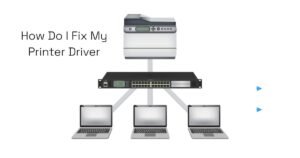
Update or Reinstall Your Printer Driver
An outdated or corrupted printer driver can prevent your computer from communicating with the printer.
To update the driver:
- Right-click the Start button.
- Open Device Manager.
- Expand Printers or Print queues.
- Right-click your printer.
- Select Update driver.
- Follow the instructions.
For the best compatibility, download the latest driver from your printer manufacturer’s official website.
Check Your Printer’s IP Address
Wireless printers use an IP address to communicate over a network.
Sometimes, the router assigns a new IP address to the printer, causing Windows to lose its connection.
To troubleshoot:
- Open your printer’s network settings.
- Find the Network Status or Network Configuration option.
- Check the printer’s current IP address.
- Compare it with the address configured in Windows.
- If they differ, update the printer connection or port configuration as appropriate.
If the problem happens frequently, configuring a DHCP reservation through your router may help keep the printer’s IP address consistent.
Reset Your Printer to Factory Settings
If normal network troubleshooting does not work, a factory reset may be necessary.
A factory reset restores the printer’s settings to their original configuration.
The procedure varies by manufacturer and model.
Before performing a factory reset:
- Save any settings you may need later.
- Make sure you know your Wi-Fi password.
- Check the manufacturer’s reset instructions.
- Understand that network and custom settings may be erased.
After the reset, complete the printer’s initial setup and reconnect it to your computer or wireless network.
How to Reset Printer Connections for Different Brands
Different manufacturers provide different wireless setup and reset options.
HP Printers
Use the printer’s Wireless or Network Settings menu, or the official HP setup application, to reconnect the printer to Wi-Fi. Available reset options vary by model.
Canon Printers
Open the printer’s LAN or Wireless Settings menu and follow the model-specific network reset and wireless setup instructions.
Epson Printers
Use the Network Settings menu on supported models or Epson’s official setup software to restore and configure the wireless connection.
Brother Printers
Check the Network menu on the printer’s control panel. Supported models may provide a Network Reset option to restore network settings.
Always check the official support documentation for your exact printer model.
Frequently Asked Questions (FAQs)
1. How do I reset my printer connection to my computer?
Restart your printer and computer, check the USB or Wi-Fi connection, and remove and reinstall the printer through Windows Settings if necessary.
2. Will resetting my printer connection delete saved Wi-Fi settings?
A network reset generally removes saved wireless network details. You will need to enter your Wi-Fi password again to reconnect.
3. Why is my printer not connecting to Wi-Fi after a reset?
Possible causes include an incorrect Wi-Fi password, unsupported wireless frequency, weak signal, router settings, or an incomplete wireless setup.
4. How do I reconnect my HP printer after resetting the network?
Open the printer’s wireless settings, start the wireless setup process, select your Wi-Fi network, and enter the password. You can also use the official HP setup application.
5. Do I need to reinstall printer drivers after resetting the connection?
Not always. A network reset usually does not remove printer drivers. However, reinstalling the printer may help if Windows still cannot communicate with it.
6. How often should I reset my printer connection?
You generally do not need to reset your printer regularly. Only reset the network connection when troubleshooting connectivity problems or changing wireless networks.
Final Thoughts
Printer connection problems can interrupt your work, but they do not always indicate a hardware failure.
Restarting the printer and router, resetting wireless settings, reconnecting to Wi-Fi, and reinstalling the printer in Windows can resolve many common connection issues.
If your printer still cannot connect after trying these solutions, check its network configuration, drivers, and hardware.
Keeping your printer software updated and maintaining a stable Wi-Fi connection can help prevent future connectivity problems.
Add comment