
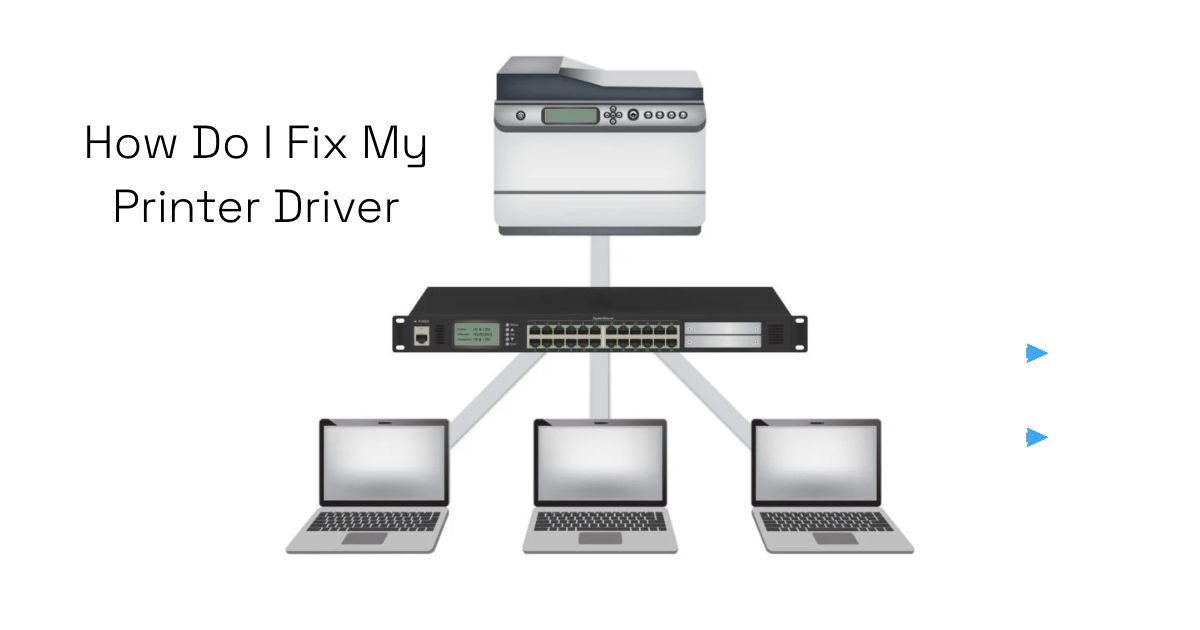
How Do I Fix My Printer Driver?
Troubleshooting Guide for Windows 10 and 11
Is your printer not working properly? Does Windows display a message saying that the printer driver is unavailable, missing, or corrupted?
Printer driver problems are common in Windows 10 and Windows 11. A faulty driver can prevent your computer from recognizing the printer, cause printing errors, or stop documents from printing.
The good news is that most printer driver issues can be fixed without replacing your printer.
In this guide, we’ll explain how to fix printer driver problems, update outdated drivers, reinstall printer software, and restore communication between your computer and printer.
What Is a Printer Driver and Why Is It Important?
A printer driver is software that allows your computer and printer to communicate with each other.
When you send a document to print, the driver helps Windows convert the information into instructions that your printer understands.
If the driver is outdated, incompatible, missing, or corrupted, you may experience problems such as:
- Printer driver unavailable error.
- Printer not detected by Windows.
- Documents stuck in the print queue.
- Printer showing an offline status.
- Printing blank or incomplete pages.
- Printer not responding to print commands.
- Incorrect printing settings.
Installing the correct driver can resolve many of these issues.
Restart Your Computer and Printer
Before making changes to the driver, restart both devices.
Temporary communication errors can sometimes make Windows report a printer driver problem.
Follow these steps:
- Turn off your printer.
- Restart your computer.
- Wait for Windows to load completely.
- Turn your printer back on.
- Check whether Windows recognizes the printer.
If the problem continues, try the following troubleshooting methods.
Update Your Printer Driver Through Device Manager
An outdated printer driver may cause compatibility and communication problems.
Windows Device Manager allows you to check for available driver updates.
Steps to update your driver:
- Right-click the Start button.
- Select Device Manager.
- Expand Printers or Print queues.
- Right-click your printer.
- Select Update driver.
- Choose Search automatically for drivers.
- Follow the instructions.
Restart your computer after updating the driver if necessary.
Keep in mind that Windows may not always find the newest driver available from the manufacturer.
Download the Correct Driver From the Manufacturer’s Website
If Windows cannot update your printer driver, download the latest compatible version directly from the printer manufacturer’s official website.
Popular printer manufacturers include:
- HP
- Canon
- Epson
- Brother
- Samsung-supported printer models
How to download the correct driver:
- Identify your printer’s exact model number.
- Visit the manufacturer’s official support website.
- Search for your printer model.
- Select your Windows version.
- Download the recommended printer driver.
- Run the installation file.
- Follow the setup instructions.
Always check that the driver matches your printer model and Windows system architecture.
Avoid downloading drivers from unknown third-party websites.
Uninstall and Reinstall the Printer Driver
If your printer driver is corrupted or incorrectly installed, reinstalling it may resolve the issue.
Follow these steps:
- Open Settings.
- Select Bluetooth & devices.
- Click Printers & scanners.
- Select your printer.
- Click Remove.
- Restart your computer.
- Download the correct driver from the manufacturer’s website.
- Install the driver.
- Reconnect your printer when prompted.
After installation, print a test page to confirm that the printer is working.
Fix the Printer Driver Is Unavailable Error
The Printer Driver Is Unavailable message usually means Windows cannot find or properly use a compatible printer driver.
Try these steps:
- Open Windows Settings.
- Select Printers & scanners.
- Select your printer and remove it.
- Restart Windows.
- Download the latest compatible driver.
- Install the driver.
- Add your printer again.
If the error continues, check Windows Update for optional driver updates.
Run Windows Update
Windows updates sometimes include printer driver updates and compatibility fixes.
To check for updates:
- Press Windows + I.
- Open Windows Update.
- Click Check for updates.
- Install available updates.
- Open Advanced options.
- Select Optional updates, if available.
- Check for relevant driver updates.
Only install driver updates that match your printer and hardware.
Restart the Print Spooler Service
The Print Spooler manages printing tasks in Windows.
If this service stops responding, your printer may fail to receive documents even when the driver is installed correctly.
How to restart Print Spooler:
- Press Windows + R.
- Type
services.msc. - Press Enter.
- Find Print Spooler.
- Right-click it.
- Select Restart.
Wait a few seconds and try printing again.
Remove Old or Duplicate Printer Drivers
Multiple printer installations or outdated driver packages can sometimes create conflicts.
You can inspect installed printer drivers through Print Server Properties.
Steps:
- Open Control Panel.
- Select Devices and Printers.
- Select any printer.
- Open Print server properties from the available toolbar or menu.
- Select the Drivers tab.
- Review the installed printer drivers.
Remove an old driver package only when you are certain it is no longer required. Make sure the printer is not using that driver.
Check Your Printer Connection
Sometimes the driver is working correctly, but Windows cannot communicate with the printer.
Check the following:
- Make sure the printer is switched on.
- Check the USB cable if you use a wired printer.
- Confirm that the printer and computer are connected to the same Wi-Fi network.
- Restart your wireless router if necessary.
- Check whether the printer displays any error messages.
A stable connection is necessary for successful printing.
Use the Windows Printer Troubleshooter
Windows includes troubleshooting options that can identify certain printer-related problems.
For Windows 11:
- Open Settings.
- Select System.
- Click Troubleshoot.
- Select Other troubleshooters.
- Find Printer.
- Click Run, if available.
Follow the instructions provided by Windows.
When Should You Seek Professional Help?
If your printer still does not work after reinstalling the driver, the problem may involve hardware or deeper software configuration issues.
Consider professional assistance if:
- Windows cannot detect your printer at all.
- Driver installation repeatedly fails.
- The printer displays hardware error messages.
- USB or network connections are unstable.
- The printer produces unusual noises.
- The printer remains unresponsive after troubleshooting.
A technician can check the printer hardware, connection ports, driver compatibility, and internal components.
Frequently Asked Questions (FAQs)
1. How do I fix my printer driver in Windows 11?
Open Device Manager, locate your printer, and select Update driver. If that does not work, download the correct driver from the manufacturer’s website and reinstall it.
2. Why does my computer say the printer driver is unavailable?
This error can occur because of missing, outdated, corrupted, or incompatible printer drivers.
3. How do I reinstall my printer driver?
Remove the printer through Windows Settings, restart your computer, download the correct driver, and follow the installation instructions.
4. Can Windows automatically install printer drivers?
Yes. Windows can automatically install compatible drivers when you connect a supported printer. However, some models require software from the manufacturer.
5. How do I know if my printer driver is outdated?
You may experience printing errors, compatibility problems, or missing features. Check the manufacturer’s support website for the latest driver version for your printer.
6. Should I use third-party driver updater software?
It is generally safer to download printer drivers directly from the manufacturer’s official website or use Windows Update.
Conclusion
Printer driver problems can prevent your computer from communicating properly with your printer. Fortunately, most issues can be resolved by



Add comment