
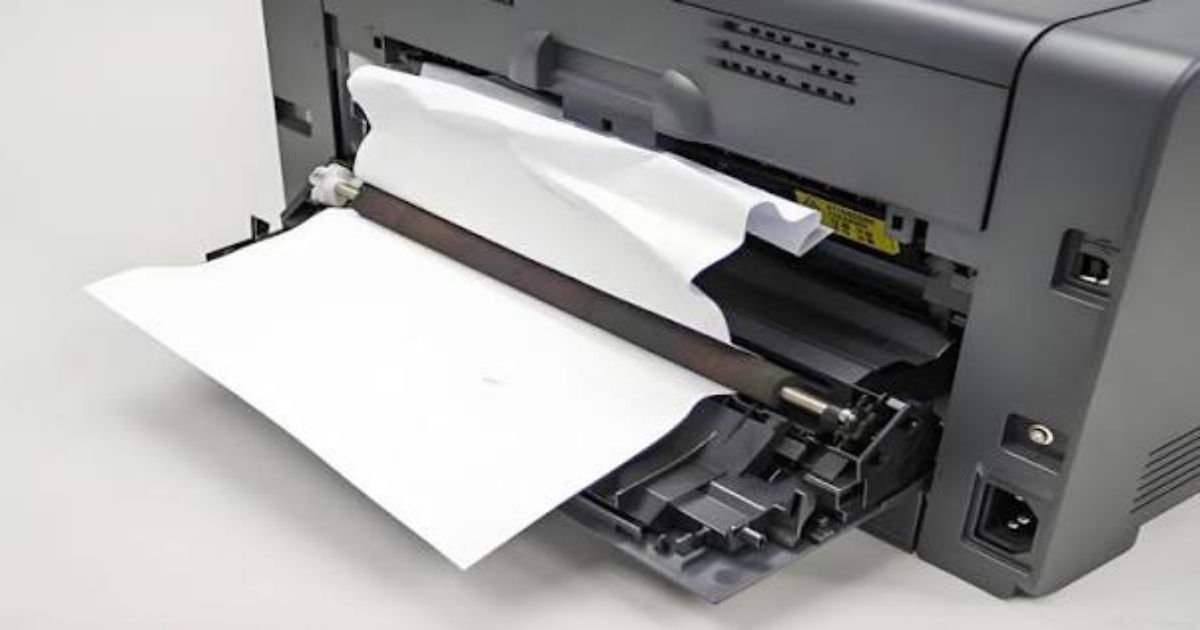
How Do I Unblock a Paper Jam?
A Complete Printer Troubleshooting Guide
Is your printer displaying a Paper Jam error even though you cannot see any paper stuck inside? Or has a sheet of paper become trapped inside your printer while printing?
A paper jam is one of the most common printer problems. It can happen with HP, Canon, Epson, Brother, and other printer brands.
A paper jam can interrupt your work, stop printing, and sometimes cause your printer to display an error message.
Fortunately, most paper jams can be cleared at home without professional assistance.
In this guide, you’ll learn how to safely remove jammed paper, troubleshoot common printer errors, and prevent paper jams from happening again.
Why Does My Printer Keep Getting Paper Jams?
Before removing the jammed paper, it helps to understand what causes the problem.
Common reasons include:
- Using damaged, folded, or wrinkled paper.
- Loading too many sheets into the paper tray.
- Incorrect paper size or type settings.
- Dust or debris inside the printer.
- Dirty or worn paper feed rollers.
- Incorrectly loaded paper.
- Paper fragments stuck inside the printer.
- Faulty paper sensors or feed mechanisms.
Identifying the cause can help prevent the same issue from happening again.
How to Safely Remove Jammed Paper From a Printer
Before attempting to clear a paper jam, follow these safety precautions:
- Stop the current print job.
- Turn off the printer.
- Unplug the power cable.
- Allow hot components, especially in laser printers, to cool down.
- Check the printer’s user manual for the recommended paper removal procedure.
Never pull paper forcefully because it can tear and leave small pieces inside the printer.
Check the Paper Input Tray
Start by checking the paper input tray, where sheets enter the printer.
Sometimes paper becomes stuck before reaching the printing mechanism.
What to do:
- Remove all paper from the input tray.
- Check for folded or damaged sheets.
- Look for paper stuck near the feed rollers.
- Remove any visible obstruction carefully.
- Reload fresh, properly aligned paper.
Make sure the paper guides are adjusted to fit the paper size without pressing too tightly.
Open the Printer’s Rear Access Panel
Many printers provide a rear access door that allows users to remove jammed paper.
Follow these steps:
- Turn off and unplug the printer.
- Locate the rear access panel.
- Open the panel carefully.
- Look for visible jammed paper.
- Hold the paper with both hands where possible.
- Pull it out slowly in the direction recommended by the manufacturer.
- Check for any remaining paper fragments.
- Close the access panel securely.
Not every printer has a rear access panel, so check your model’s instructions before opening anything.
Check Inside the Printer
If you cannot find the jammed paper in the input tray or rear panel, inspect the accessible internal paper path.
For inkjet printers, check the area around the carriage and paper feed path. Do not force the printhead carriage to move.
For laser printers, avoid touching the imaging drum or hot fuser components.
Remove only paper that is clearly visible and accessible.
Remove Jammed Paper From the Output Tray
Sometimes paper gets stuck while coming out of the printer.
Check the output tray and paper exit area.
- Remove any partially printed sheets carefully.
- Check whether the paper is torn.
- Look for small pieces near the exit rollers.
- Avoid pulling paper against the direction recommended by the manufacturer.
After removing the obstruction, close all printer covers properly.
Check the Paper Feed Rollers
Paper feed rollers help move sheets through the printer.
If these rollers become dirty or worn, they may fail to pick up paper correctly or feed multiple sheets simultaneously.
Signs of roller problems include:
- Paper not feeding properly.
- Multiple sheets feeding together.
- Repeated paper jams.
- Paper stopping halfway through printing.
Clean accessible rollers only according to the printer manufacturer’s instructions. Use an appropriate lint-free cloth if recommended.
If the rollers are damaged or worn, they may need replacement.
Restart Your Printer and Clear the Error
After removing the jammed paper, restart the printer.
- Make sure all printer covers are closed.
- Reconnect the power cable.
- Turn on the printer.
- Wait for the printer to complete its startup process.
- Check whether the Paper Jam message disappears.
- Print a test page.
If the error remains, inspect the paper path again for tiny paper fragments or check the printer’s diagnostic instructions.
What If the Printer Says Paper Jam but No Paper Is Stuck?
This problem can occur even when the paper path appears clear.
Possible causes include:
- Small pieces of torn paper inside the printer.
- Dust or debris near paper sensors.
- A paper sensor stuck in the wrong position.
- Dirty or damaged feed rollers.
- A mechanical problem with the paper feed system.
Try removing the paper tray and inspecting the accessible paper path with a flashlight.
Do not insert sharp objects or forcefully move internal components.
If the error continues, professional servicing may be required.
How to Fix Paper Jams in Different Printer Brands
Different printer manufacturers use different paper feed mechanisms and access panels.
HP Printers
Check the input tray, rear access door, and output area. Some HP models also provide an automatic document feeder that may need separate inspection.
Canon Printers
Check the paper output slot, transport unit, and accessible internal paper path. Follow the model-specific instructions for removing jammed paper.
Epson Printers
Inspect the rear paper feed, output area, and scanner unit access where supported. Never force the printhead carriage.
Brother Printers
Check the paper tray, rear cover, and internal access areas. Laser models may have separate drum and toner assemblies that require careful handling.
Always follow your printer model’s official paper jam removal instructions.
How to Prevent Printer Paper Jams
Preventing paper jams is easier than repeatedly fixing them.
Keep these maintenance tips in mind:
- Use good-quality paper recommended for your printer.
- Avoid wrinkled, folded, or damp paper.
- Do not exceed the paper tray capacity.
- Adjust paper guides correctly.
- Store paper in a dry environment.
- Clean accessible feed rollers periodically.
- Use the correct paper size settings.
- Remove dust and debris from the paper tray.
- Avoid mixing different paper types in one stack.
Regular printer maintenance can help improve paper feeding and reduce interruptions.
When Should You Contact a Printer Technician?
If your printer continues experiencing paper jams after removing all visible obstructions, there may be a hardware problem.
Contact a professional technician if:
- Paper repeatedly gets stuck in the same location.
- Feed rollers are damaged.
- The printer makes unusual grinding noises.
- Small paper fragments cannot be removed safely.
- The printer displays a persistent paper jam error.
- Internal paper sensors are malfunctioning.
Professional servicing can help identify damaged rollers, sensors, or other mechanical issues.
Frequently Asked Questions (FAQs)
1. How do I unblock a paper jam in my printer?
Turn off and unplug your printer, inspect the input tray and accessible paper path, and carefully remove visible jammed paper without pulling forcefully.
2. Why does my printer keep saying paper jam when there is no paper?
Small paper fragments, dirty sensors, damaged rollers, or mechanical problems can cause a false paper jam warning.
3. Can I pull jammed paper out of my printer?
Yes, if the paper is accessible. Pull it slowly and follow the manufacturer’s recommended removal direction. Never force it.
4. Why does my printer keep jamming the paper halfway?
This may be caused by dirty or worn feed rollers, incorrect paper settings, damaged paper, or an obstruction inside the paper path.
5. How do I clear a paper jam error after removing the paper?
Close all printer covers, reconnect the power cable, restart the printer, and check whether the error disappears. Inspect for small remaining paper fragments if it persists.
6. Can poor-quality paper cause printer jams?
Yes. Thin, damp, wrinkled, or damaged paper can cause feeding problems and increase the chances of paper jams.
Conclusion
A printer paper jam can be frustrating, especially when you need to print an important document. However, most paper jams can be resolved by carefully inspecting the paper tray, rear access panel, output area, and accessible internal paper path.
Always switch off and unplug your printer before clearing a jam, and avoid pulling paper forcefully.
If your printer continues showing a Paper Jam error after removing all visible paper, the problem may be related to feed rollers, sensors, or internal mechanical components.
Regular cleaning and proper paper handling can help keep your printer working smoothly.


Add comment