
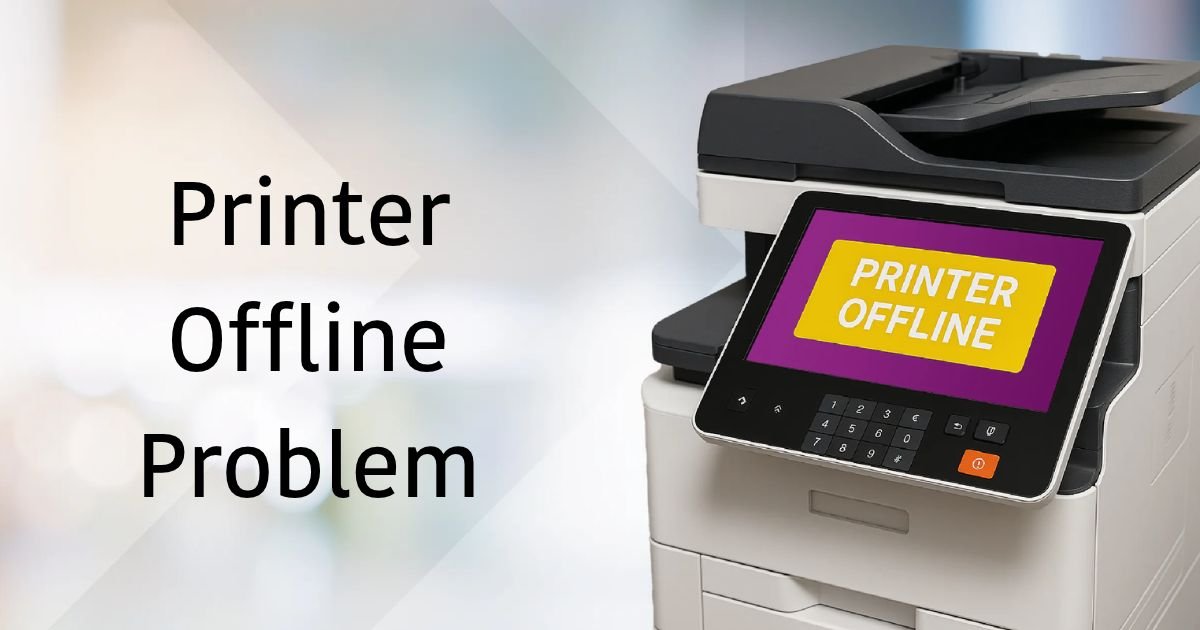
How Do I Get My Printer Back Online?
Simple Fixes for Windows 10 and Windows 11
Are you trying to print an important document, but your printer keeps showing an Offline status? This is one of the most common printer problems faced by Windows users.
When a printer goes offline, your computer cannot communicate with it properly. As a result, print jobs may get stuck in the queue, documents may not print, and your printer may stop responding.
The good news is that you can often fix this problem without calling a technician.
In this guide, we’ll explain why your printer keeps going offline and how to get it back online in Windows 10 and Windows 11.
Why Does My Printer Keep Showing Offline?
Before troubleshooting, it helps to understand what causes the problem.
Some common reasons include:
- Loose USB or power connections.
- Wi-Fi connectivity problems.
- Printer and computer connected to different networks.
- Incorrect printer settings.
- Print Spooler service errors.
- Outdated or corrupted printer drivers.
- Stuck documents in the print queue.
- Printer not set as the default device.
- Printer turned off or in sleep mode.
- Communication problems between Windows and the printer.
Let’s look at how to resolve these issues.
Check Your Printer’s Power and Connection
Start with the basics. Sometimes, a printer goes offline simply because it has lost power or its connection to the computer.
If you use a USB printer:
- Make sure the printer is switched on.
- Check that the USB cable is properly connected.
- Try another USB port on your computer.
- If possible, test with another USB cable.
If you use a wireless printer:
- Make sure Wi-Fi is enabled on the printer.
- Check that the printer and computer are connected to the same network.
- Restart your Wi-Fi router if necessary.
Once everything is connected, check whether the printer status changes to Online.
Turn Off Use Printer Offline Mode
Windows sometimes switches a printer to offline mode accidentally.
You can manually disable this setting.
Steps for Windows 11 and Windows 10:
- Open Control Panel.
- Select Devices and Printers.
- Find your printer.
- Right-click the printer icon.
- Select See what’s printing.
- Click the Printer menu.
- If Use Printer Offline is selected, click it to remove the selection.
Check whether your printer is online now.
Set Your Printer as the Default Printer
If Windows is sending print jobs to the wrong printer, your actual printer may appear inactive.
To set the correct printer as default:
- Press Windows + I.
- Open Settings.
- Select Bluetooth & devices.
- Click Printers & scanners.
- Select your printer.
- Click Set as default, if available.
On Windows 10, go to Settings > Devices > Printers & scanners.
Make sure Windows is not automatically managing your default printer if you want to select it manually.
Restart Your Printer and Computer
A simple restart can resolve temporary communication problems.
Follow these steps:
- Turn off your printer.
- Disconnect its power cable.
- Wait approximately 30 seconds.
- Reconnect the power cable.
- Turn on the printer.
- Restart your computer.
Wait until the printer finishes initializing before sending another print job.
Clear the Stuck Print Queue
Sometimes, a document gets stuck in the print queue and prevents other documents from printing.
Clearing the queue may resolve the problem.
Steps:
- Open Settings.
- Select Bluetooth & devices.
- Click Printers & scanners.
- Select your printer.
- Open the print queue.
- Cancel the pending documents.
After clearing the queue, try printing a test page.
Restart the Print Spooler Service
The Print Spooler is a Windows service responsible for managing print jobs.
If this service stops working correctly, your printer may appear offline or fail to print.
How to restart Print Spooler:
- Press Windows + R.
- Type
services.msc. - Press Enter.
- Find Print Spooler.
- Right-click it.
- Select Restart.
Now check whether your printer is working again.
Run the Windows Printer Troubleshooter
Windows includes troubleshooting tools that can automatically detect and resolve certain printer problems.
For Windows 11:
- Open Settings.
- Select System.
- Click Troubleshoot.
- Select Other troubleshooters.
- Find Printer.
- Click Run, if available.
Follow the instructions displayed on your screen.
The available troubleshooting options may vary depending on your Windows version.
Update or Reinstall Your Printer Driver
An outdated or corrupted printer driver can prevent Windows from communicating with your printer.
Updating or reinstalling the driver may fix the offline issue.
Steps to update your printer driver:
- Right-click the Start button.
- Open Device Manager.
- Expand Printers or Print queues.
- Right-click your printer.
- Select Update driver.
- Follow the instructions.
You can also download the latest compatible driver from your printer manufacturer’s official website.
If updating doesn’t help, remove the printer from Windows and add it again using Settings > Printers & scanners.
Check Your Wireless Printer’s Network Connection
If your printer uses Wi-Fi, network connectivity is especially important.
Your printer may show offline if it has disconnected from your wireless network.
Try the following:
- Check the Wi-Fi indicator on your printer.
- Print a network configuration report if your printer supports it.
- Confirm that the printer is connected to your current Wi-Fi network.
- Restart your router.
- Reconnect the printer to Wi-Fi if necessary.
Also check whether your router has separate guest and main networks. Devices on isolated networks



Add comment