
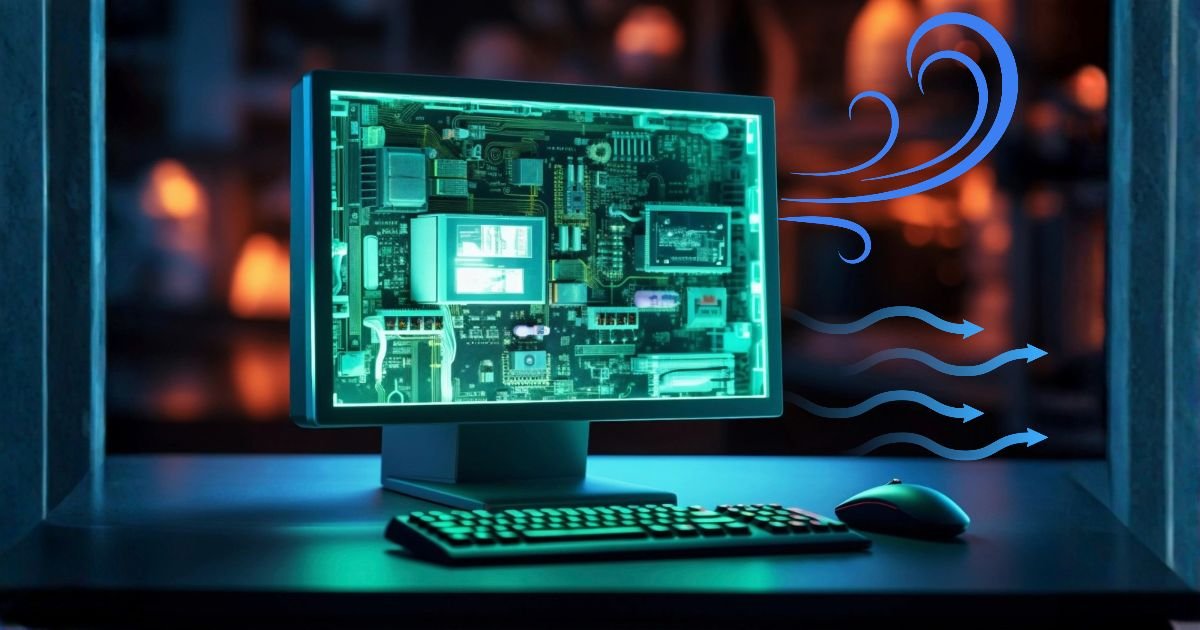
Computer Heating Problem Solution:
Easy Ways to Stop Your PC or Laptop From Overheating
Is your computer getting too hot while working, gaming, or browsing the internet? Does your laptop fan make unusual noise, or does your PC suddenly shut down due to high temperatures?
Computer overheating is a common problem that affects both laptops and desktop computers. Excessive heat can reduce system performance, cause unexpected shutdowns, and potentially damage hardware if ignored.
The good news is that you can solve many computer heating problems with a few simple steps.
In this guide, we will explain 12 effective computer heating problem solutions to help keep your laptop or desktop cool and running smoothly.
Why Does a Computer Overheat?
Before fixing the problem, it is important to understand why your computer gets hot.
Some common causes include:
- Dust accumulated inside the cooling fan.
- Blocked air vents.
- Poor ventilation around the computer.
- Too many applications running simultaneously.
- High CPU or GPU usage.
- Old or dried-out thermal paste.
- Faulty cooling fans.
- Playing demanding games for long periods.
- High room temperature.
- Malware or unwanted background processes.
Identifying the cause will help you choose the right solution.
1. Clean Your Computer Cooling Fan
Dust is one of the most common reasons for computer overheating.
Over time, dust accumulates inside cooling fans and air vents, restricting airflow and preventing heat from escaping.
How to clean your computer:
- Shut down your computer.
- Disconnect the power cable and peripherals.
- If cleaning a laptop, follow the manufacturer’s maintenance instructions.
- Use compressed air to remove dust from accessible vents.
- Avoid spinning fans excessively with compressed air.
- Reconnect everything and turn on your computer.
For internal cleaning, consider professional servicing if you are unfamiliar with opening your computer.
2. Improve Airflow Around Your Computer
Poor ventilation can increase computer temperatures.
Make sure your laptop or desktop has enough space for air to circulate.
Follow these tips:
- Keep your laptop on a flat, hard surface.
- Avoid using your laptop on beds, blankets, or pillows.
- Do not block cooling vents.
- Keep desktop computers away from enclosed cabinets.
- Leave sufficient space around desktop air intake and exhaust vents.
Good airflow helps your cooling system remove heat efficiently.
3. Use a Laptop Cooling Pad
If your laptop frequently overheats, a cooling pad may help.
A laptop cooling pad uses additional fans to improve airflow around the bottom of the laptop.
Benefits of a cooling pad:
- Provides additional airflow.
- Helps reduce heat buildup.
- Improves comfort when using a laptop on a desk.
- May help maintain performance during demanding tasks.
Choose a cooling pad that matches your laptop size and vent design.
4. Close Unnecessary Background Applications
Running too many applications at the same time can increase CPU and RAM usage.
When the processor works harder, it generates more heat.
How to close unnecessary applications:
- Press
Ctrl + Shift + Esc. - Open Task Manager.
- Check the Processes section.
- Identify applications consuming high CPU resources.
- Close applications you are not using.
Avoid ending unfamiliar Windows system processes.
5. Check CPU and GPU Temperature
Monitoring your computer temperature can help you identify overheating problems.
You can use hardware monitoring applications or manufacturer-provided diagnostic utilities to check CPU and GPU temperatures.
Pay attention to:
- CPU temperature.
- GPU temperature.
- Fan speed.
- Temperature under heavy workloads.
Safe operating temperatures vary depending on the processor and graphics card model. Check your manufacturer’s specifications rather than relying on one universal temperature limit.
6. Update Graphics and Device Drivers
Outdated or incompatible drivers can sometimes cause excessive resource usage, system instability, and performance problems.
Updating your graphics and chipset drivers may help resolve certain overheating-related issues.
Steps to update drivers:
- Right-click the Start button.
- Open Device Manager.
- Expand Display adapters.
- Right-click your graphics device.
- Select Update driver.
- Follow the instructions.
For the latest drivers, visit your laptop or graphics card manufacturer’s official website.
7. Reduce Heavy Gaming and CPU Usage
Gaming, video editing, 3D rendering, and other demanding activities can generate significant heat.
If your computer gets too hot during gaming, try these adjustments:
- Reduce graphics quality.
- Lower the game resolution.
- Limit the frame rate.
- Close unnecessary background applications.
- Avoid running several demanding applications simultaneously.
These changes can reduce CPU and GPU workload.
8. Change Windows Power Settings
Running your laptop at maximum performance all the time can increase power consumption and heat generation.
Windows 11 provides power modes that help balance performance and energy usage.
How to change power mode:
- Press
Windows + I. - Select System.
- Click Power & battery.
- Find Power mode.
- Select Balanced or Best power efficiency.
This may reduce heat during everyday activities, although performance can also decrease under heavy workloads.
9. Check Your Computer Cooling Fan
A faulty or malfunctioning cooling fan can cause serious overheating.
Signs of fan problems include:
- Fan not spinning when cooling is needed.
- Unusual grinding or rattling sounds.
- Very loud fan noise.
- Frequent overheating.
- Sudden performance drops.
If the cooling fan is damaged, have it inspected and replaced by a qualified technician.
10. Replace Old Thermal Paste
Thermal paste helps transfer heat from the processor to its heatsink.
Over time, thermal paste can deteriorate, particularly in older computers or systems that have experienced prolonged high temperatures.
Replacing thermal paste may improve cooling if the existing thermal interface is no longer working properly.
Important: Thermal paste replacement requires opening the computer and removing the cooling assembly. It is best performed by an experienced technician if you are unfamiliar with hardware maintenance.
11. Scan Your Computer for Malware
Some malware programs run continuously in the background and consume CPU resources.
This can increase system temperature and reduce performance.
How to scan for malware in Windows 11:
- Open Windows Security.
- Select Virus & threat protection.
- Click Scan options.
- Choose Full scan.
- Click Scan now.
- Follow the recommended actions if threats are detected.
Keeping your computer protected can help prevent unwanted background activity.
12. Keep Your Computer in a Cool Environment
Room temperature also affects computer cooling.
If your computer is used in a hot room, its cooling system may struggle to remove heat efficiently.
Helpful tips:
- Use your computer in a well-ventilated room.
- Keep it away from direct sunlight.
- Avoid placing it near heaters.
- Use air conditioning when necessary.
- Keep the computer away from heat-producing appliances.
A cooler environment can help maintain stable operating temperatures.
Bonus Tip: When Should You Visit a Computer Repair Technician?
If your computer continues overheating after trying these solutions, professional inspection may be necessary.
Visit a technician if you notice:
- Computer shutting down unexpectedly.
- Burning smells.
- Smoke or unusual electrical sounds.
- Cooling fan failure.
- Extreme heat around the laptop body.
- Battery swelling.
- Persistent overheating despite cleaning and improved airflow.
Important: If you notice smoke, a burning smell, or battery swelling, shut down the computer, disconnect power if safe, stop using it, and seek professional service. Do not press or puncture a swollen battery.
Frequently Asked Questions (FAQs)
1. Why is my computer overheating?
Your computer may overheat because of dust buildup, blocked air vents, faulty cooling fans, high CPU or GPU usage, dried thermal paste, or poor ventilation.
2. How can I stop my laptop from overheating?
Clean accessible air vents, use your laptop on a hard surface, close unnecessary applications, improve airflow, and check whether the cooling fan is working properly.
3. Is it normal for a computer to get hot while gaming?
Yes. Gaming increases CPU and GPU workload, which generates heat. However, persistent overheating, thermal throttling, or unexpected shutdowns should be investigated.
4. Does a cooling pad really work?
A cooling pad can improve airflow around a laptop and may reduce temperatures. Results depend on the laptop’s cooling design and the cooling pad.
5. How often should I clean my computer fan?
It depends on the environment and dust levels. Inspect your cooling vents periodically and clean them when dust buildup becomes noticeable. Computers used in dusty environments may need more frequent cleaning.
6. Can overheating damage a computer?
Yes. Prolonged excessive temperatures can affect hardware lifespan and reliability. Modern computers generally reduce performance or shut down to protect themselves when temperatures become unsafe.
7. Why does my computer fan run loudly?
A loud fan often means the computer is generating more heat and needs additional cooling. Dust buildup, demanding applications, blocked vents, or a faulty fan can also cause excessive noise.
Conclusion
Computer overheating is a problem that should not be ignored. Excessive heat can affect performance, cause unexpected shutdowns, and potentially shorten hardware lifespan.
Fortunately, many heating problems can be reduced by cleaning cooling vents, improving airflow, closing unnecessary applications, updating drivers, and checking the cooling system.
If your computer continues overheating even after trying these solutions, consider professional inspection to identify possible hardware problems.
Follow these tips to keep your computer cool, improve performance, and enjoy a smoother computing experience.




Add comment